Your Internet Is Feeding Apps You Forgot You Had: A No-Nonsense Guide to Spotting and Stopping Bandwidth Hogs

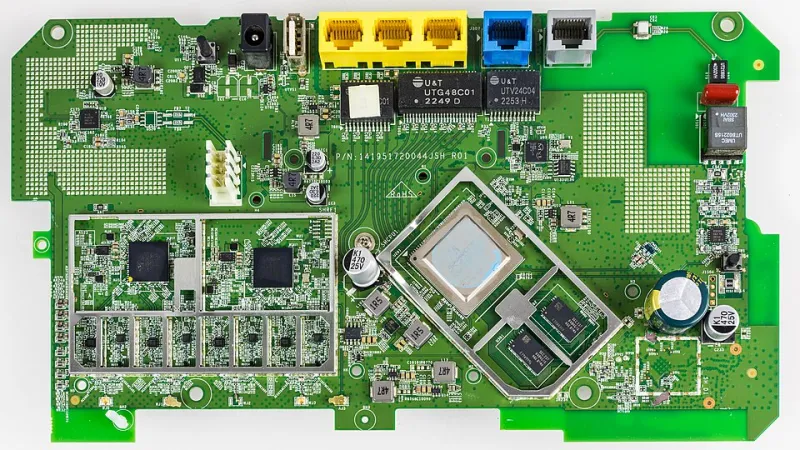
Photo: Giles Laurent, CC BY-SA 4.0, via Wikimedia Commons
Your WiFi Has a Spending Problem
Imagine your internet connection as a monthly budget. You've got a certain amount to work with, and every device, app, and service in your home is constantly making withdrawals — some of them without asking. By the time you sit down to watch something or jump on a video call, the account is nearly tapped out.
That's essentially what's happening on most home networks right now. You're paying for a solid connection, but a dozen invisible processes are quietly draining it in the background. The good news? Once you know who the big spenders are, you can put them on a strict diet.
The Usual Suspects (And a Few Surprises)
Streaming services are the obvious place to start. Netflix, Disney+, Max, and their competitors default to the highest video quality your connection can handle — which sounds great in theory. In practice, a single 4K stream can chew through 15 to 25 Mbps on its own. If two people in your house are streaming simultaneously, you've already burned through 50 Mbps before anyone even opens a browser tab.
What most people don't realize is that streaming apps often keep playing even when you're not watching. Autoplay queues content before you've decided you want it, and some platforms pre-load the next episode while you're still watching the current one.
Video conferencing is another heavy hitter. Zoom, Teams, and Google Meet can consume anywhere from 1.5 to 4 Mbps per participant just for HD video — and that number climbs fast when multiple people in the same household are on calls at the same time. Remote work has turned the average American home into a mini call center, and most home networks were never designed for that.
Then there's cloud gaming. Services like Xbox Cloud Gaming, GeForce Now, and PlayStation Remote Play stream full game video to your device in real time. We're talking 15 to 40 Mbps depending on resolution settings. If someone in your house is cloud gaming while another person is on a video call, you've already committed a significant chunk of your available bandwidth before the evening even starts.
Now here's the part that catches most people off guard: background processes. Your operating systems — Windows, macOS, iOS, Android — all run automatic updates that can download gigabytes of data without any visible notification. Google Drive, Dropbox, iCloud, and OneDrive are constantly syncing files in the background. Ring cameras and Nest devices are uploading video footage around the clock. Your smart TV is downloading firmware updates at 2 a.m. None of these ask for permission. They just go.
Social media autoplay is sneaky in a different way. Scroll through TikTok, Instagram Reels, or YouTube Shorts for 20 minutes and you've streamed more video data than you probably realize. These platforms are engineered to keep playing content continuously, and they're doing it in high resolution by default.
How to Actually See What's Eating Your Bandwidth
You can't fix what you can't see, so the first step is getting a clear picture of what's happening on your network right now.
Start with your router's admin panel. Most modern routers — especially those from brands like Asus, Netgear, and TP-Link — have built-in traffic monitoring dashboards. Log in through your browser (usually at 192.168.1.1 or 192.168.0.1), look for a section labeled "Traffic Monitor," "Bandwidth Usage," or "Connected Devices," and you'll get a real-time breakdown of which devices are consuming the most data.
Use a dedicated network monitoring app. Tools like GlassWire (Windows/Android) or Little Snitch (Mac) give you app-level visibility — meaning you can see not just which device is hogging bandwidth, but which specific application on that device is responsible. This is where the real surprises tend to show up.
Check your ISP's data usage portal. Most major providers — Xfinity, AT&T, Spectrum — offer monthly usage dashboards through their apps or websites. If you're consistently hitting your data cap before the end of the month, this is a fast way to confirm you've got a bandwidth problem worth addressing.
Putting Your Apps on a Diet
Once you've identified the culprits, here's how to rein them in.
Adjust streaming quality manually. Don't let Netflix or YouTube decide how much bandwidth they get. Go into each app's settings and cap the video quality at 1080p for everyday watching. You'll save a significant amount of bandwidth, and most people honestly can't tell the difference on a 55-inch TV from across the room.
Schedule large downloads and updates for off-hours. Windows 10 and 11 allow you to set "Active Hours" so updates don't run while you're using the computer. On your router, some models let you schedule bandwidth-heavy tasks — like backup syncing — to happen between midnight and 6 a.m. when no one's competing for the connection.
Set up Quality of Service (QoS) rules on your router. QoS is a feature that lets you prioritize certain types of traffic over others. You can tell your router that video calls always get bandwidth first, cloud backups get whatever's left over, and smart home devices get the bare minimum. It sounds technical, but most modern routers walk you through it with simple menus.
Audit your smart home devices. Walk through your home and count every device connected to WiFi. Smart bulbs, thermostats, security cameras, voice assistants, robot vacuums — they all take up space on your network. Devices that don't need a constant connection can be moved to a separate guest network or simply disconnected when not in use.
Disable autoplay everywhere you can. Netflix, YouTube, and most social apps let you turn off autoplay in their settings. It takes about two minutes per app and can meaningfully reduce how much video your network streams without you actively choosing to watch something.
Your Network, Your Rules
The bottom line is that most bandwidth problems aren't about the speed you're paying for — they're about how that speed is being allocated. A 200 Mbps connection can feel sluggish if a dozen apps are quietly draining it in the background. But once you know where your bandwidth is going, you're in a much stronger position to direct it where it actually matters.
Think of it less like a technical fix and more like cleaning out your fridge. You don't need more space — you just need to stop keeping things in there that don't belong.