Stop Blaming Your Router: Why Where You Put It Matters More Than How Close You Sit
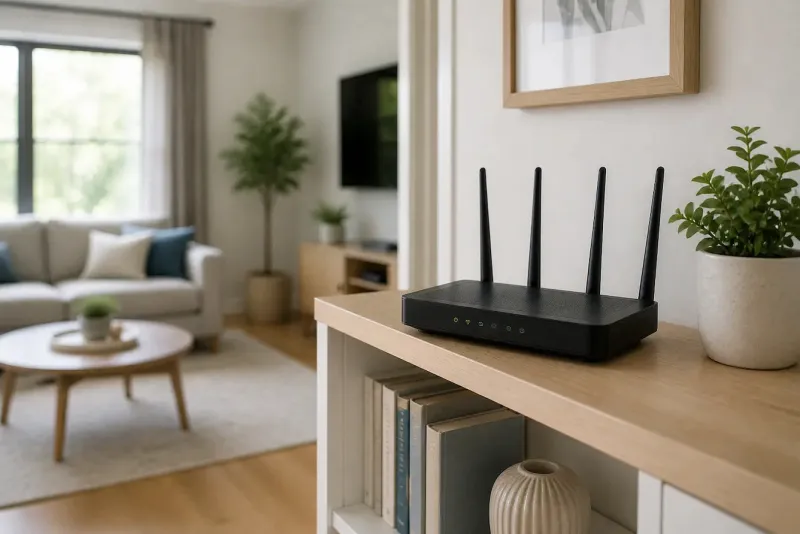
Photo: home router placement living room shelf wireless network, via cdn.shopify.com
There's a common move most of us have made at least once. Connection acting up? Drag the laptop to the room with the router. Problem solved, right? Not always. The idea that physical closeness automatically translates to better WiFi is one of the most persistent myths in home networking—and it might be quietly costing you both performance and money.
Let's break down what's really going on inside your walls.
The Physics Nobody Talks About
WiFi signals are radio waves, and radio waves don't care about your floor plan. They radiate outward from the antenna in all directions, bouncing, bending, and getting absorbed by whatever's in their path. The closer you are to the source, sure, that helps in theory. But in practice, your home is an obstacle course of signal-killers.
Drywall? Minor issue. Concrete or brick walls? Major problem. Metal studs, water pipes, and even large fish tanks can scatter or absorb a signal before it reaches your device. Here's the kicker: the two main frequency bands your router broadcasts—2.4 GHz and 5 GHz—handle these obstacles very differently.
The 2.4 GHz band travels farther and punches through solid objects more easily. The tradeoff is that it's slower and way more crowded, since everything from your microwave to your neighbor's router runs on it. The 5 GHz band delivers faster speeds but loses steam quickly over distance and has a much harder time passing through walls. WiFi 6 routers and newer models also use a 6 GHz band, which is even faster but even more sensitive to obstacles.
So if you're sitting six feet from your router but there's a concrete support column, a refrigerator, or even a thick bookshelf packed with books between you and it, that "close" connection might actually be weaker than if you were farther away with a clear line of sight.
The Surprising Truth About Where Routers End Up
Most people put their router wherever the cable or fiber line enters the house—usually a corner of the living room, a closet near the front door, or worse, tucked in the basement because that's where the coax outlet is. That's understandable. Running new cable is a pain.
But that placement is almost never optimal. If your router is shoved in a corner or buried in a cabinet, you're essentially throwing away half your signal before it ever reaches your devices. Routers broadcast in all directions, so a corner placement wastes a huge percentage of that range pushing signal into your neighbor's yard or through your foundation.
Centering your router in the home—both horizontally and vertically—is almost always a better starting point. If you have a two-story house, somewhere on the first floor ceiling or the second floor near the stairs will cover more ground than a router sitting on a basement shelf.
Common Obstacles That Are Silently Wrecking Your Signal
Here's a quick rundown of household items that cause more WiFi grief than most people realize:
- Microwaves and cordless phones: Both operate on 2.4 GHz and can actively interfere with your signal when in use.
- Baby monitors: Same frequency problem, especially older models.
- Mirrors and metal surfaces: Reflect and scatter radio waves unpredictably.
- Thick insulation in walls: Modern energy-efficient homes are often harder to penetrate with WiFi signals.
- Aquariums: Water is a surprisingly effective signal absorber. A large fish tank between you and your router is basically a speed bump for radio waves.
None of this means you need to redecorate your house. But knowing these obstacles exist helps you make smarter decisions about router placement—and explains why moving the router even a few feet can sometimes make a dramatic difference.
How to Actually Test Your Router's Coverage
You don't need to buy anything fancy to map your home's signal strength. Your smartphone is already a decent testing tool.
Use a free WiFi analyzer app. On Android, apps like WiFi Analyzer (by farproc) are free and show you signal strength in dBm as you walk through your home. On iPhone, you're a bit more limited, but apps like Network Analyzer give you a usable reading. Walk room by room and note the signal strength in each spot. You're looking for readings closer to -50 dBm (strong) versus -80 dBm or lower (weak or unusable).
Try the speed test walk. Open Speedtest by Ookla on your phone and run a quick test in each room. Write down the results. You might be surprised how much speeds drop in rooms you assumed were well-covered—and how a room you thought was a dead zone is actually doing fine.
Check both bands separately. If your router broadcasts separate 2.4 GHz and 5 GHz networks, connect to each one and compare speeds in the same spot. This tells you which band your device is actually using and whether it's choosing the right one.
Practical Placement Moves Worth Trying
Once you've got a sense of your coverage map, here's how to start improving it without buying new hardware:
Elevate the router. Placing it on a shelf or mounting it higher on the wall improves broadcast range significantly, since the signal radiates outward and slightly downward from that elevated position.
Get it out of the closet. Literally. Enclosed spaces kill signal. Even moving the router from inside a cabinet to the top of a bookcase nearby can yield a noticeable improvement.
Point antennas strategically. If your router has external antennas, perpendicular positioning (one vertical, one horizontal) often provides better multi-directional coverage than pointing them all straight up.
Keep it away from competing electronics. A router sitting next to a smart TV, gaming console, or microwave is asking for interference. Give it some breathing room.
Consider the vertical dimension. If you're trying to cover a basement or a second floor, think about where the signal has to travel. Sometimes a small repositioning—moving the router to the hallway instead of the bedroom—opens up better line-of-sight to the areas that need coverage most.
When Placement Alone Isn't Enough
If you've optimized placement and still have dead zones, that's a signal (pun intended) that your home's square footage or layout genuinely requires more than a single router can deliver. At that point, a mesh network system—where multiple nodes work together to blanket the home—is worth considering. Brands like Eero, Google Nest WiFi, and TP-Link Deco are popular options in the US market and have become much more affordable in recent years.
But before you spend money on new hardware, spend twenty minutes testing your current setup. You might find that the best upgrade you can make costs nothing at all—just a different shelf.
Your signal is only as good as the environment you give it to work in. Understanding the physics, identifying the obstacles, and testing systematically puts you in control of your network instead of just hoping for the best.