Your Router Is Running Software Older Than Your Phone — And Nobody's Patching It
Your phone nags you about an update every few weeks. Your laptop installs patches while you sleep. Even the streaming stick behind your TV quietly reboots itself at 3 a.m. and you never notice.
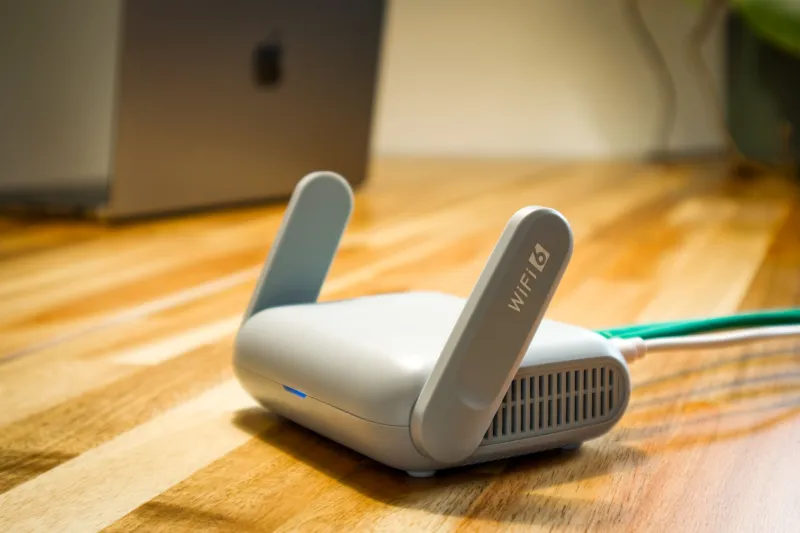
Then there's the router. The box in the closet that every single device in your house depends on. For a lot of people, the software inside it hasn't changed since the day it came out of the box — sometimes three years, sometimes seven.
That's not just lazy housekeeping. Outdated router firmware is one of the most dependable ways into a home network, and it's the one nobody thinks to check.
Firmware Is Just the Router's Operating System
Firmware is the software that runs the whole device: the radios, the firewall, the DHCP pool, the admin page, all of it. Manufacturers ship it with bugs, exactly like any other software. They fix those bugs in later releases.
The difference is that a router doesn't tell you. There's no notification bubble, no red badge, no "restart to finish updating." The fix sits on the vendor's support page until you go looking for it. Most people never do. The router gets a name like HOME-2847, gets shoved behind the couch, and disappears into the background for the rest of its natural life.
Why Anyone Would Bother Attacking Your Router
Because it's a great place to stand. Every packet in your house passes through that box. Compromise it and you can redirect DNS lookups, inject ads into pages that shouldn't have them, quietly log traffic, or simply add the device to a botnet and rent out your bandwidth by the hour.
And the attacks are rarely clever. They're mostly known, documented, already-patched flaws. Vendors publish security advisories with CVE numbers. Researchers publish working exploits. The fix exists and is downloadable.
The only thing standing between a well-known vulnerability and your network is whether you installed the update.
History makes the point better than any warning label. The VPNFilter malware in 2018 is believed to have infected hundreds of thousands of routers worldwide, and a large share of the affected hardware was running firmware that was years behind. Repeated botnet takedowns since then have followed the same pattern: old code, default passwords, nobody watching.
Step One: Figure Out What You're Actually Running
This takes about three minutes.
- Find the admin address. Usually 192.168.1.1 or 192.168.0.1. It's printed on the sticker on the bottom of the router, and your phone shows it under the WiFi network's details as "Router."
- Log in. If you never changed the password, the default is on that same sticker. If you changed it and forgot, a factory reset and a fresh setup is worth the 15 minutes.
- Find the version string. Look under Firmware, System, Administration, or Device Info. Write down the exact version and the hardware revision (v1 and v2 are different devices, and mixing up their firmware is how routers get bricked).
- Go to the manufacturer's own site. Type the brand into the address bar yourself and navigate to support. Do not download firmware from a search result or a third-party mirror page.
- Compare. If the support page lists a newer version than yours, you're running old code.
If the newest release for your model is from 2021 or earlier, you've learned something more important: your router is probably end-of-life and no longer receiving security patches at all.
Step Two: Turn On Automatic Updates and Forget About It
Most routers built in the last five years have an auto-update toggle buried under Firmware or Administration. Flip it on. That's the entire job, and you never have to think about it again.
Mesh systems and app-managed routers — eero, Google Nest Wifi, TP-Link Deco, Orbi — usually update themselves by default. Confirm it in the app rather than assuming, because "usually" isn't "always."
If your router has no automatic option, treat updates as a recurring chore instead of a one-time project. Quarterly is reasonable. Pick a date, put it on your calendar, and run it while the coffee brews.
Two practical warnings. Update over a wired connection if the router has a port and you can reach it — a WiFi hiccup in the middle of a flash can leave you with a very expensive paperweight. And don't start an update ten minutes before a work call, because the router will reboot and everything drops, including the call.
Also: only install firmware from the manufacturer. Custom firmware from a forum can be perfectly legitimate, but if you're reading this article, you probably don't want to be debugging a bricked router on a Tuesday night.
The Settings That Matter Just As Much
A patch closes known holes. These close the front door:
- Change the admin password. Default credentials are the single most exploited router weakness on the planet.
- Use WPA2 or WPA3. Not WEP, not open, not WPA-TKIP.
- Turn off WPS. The push-button pairing feature has been crackable for over a decade.
- Disable remote management unless you genuinely use it.
- Turn off UPnP if you don't need it. It's convenient, and it's also how a lot of malware punches its own holes through your firewall.
When Updating Won't Save You
If the vendor has moved on and stopped shipping firmware for your model, patching isn't going to rescue anything. An end-of-life router is a computer with a permanent, growing list of known bugs sitting on your network 24 hours a day. That's the point where an $80 replacement stops being an upgrade and starts being basic hygiene.
Same story if the router came from your ISP six or eight years ago and that model no longer gets updates. Call them. Sometimes they'll swap it for free, especially if you ask directly whether the hardware is still supported.
The Five-Minute Version
Check the version. Compare it to the vendor's page. Turn on auto-update. Change the admin password while you're already logged in. If the router is past end-of-life, replace it.
None of that is fun. It won't make your WiFi faster and nobody is going to compliment your setup. But it's the cheapest security work you'll do all year, and it protects every device in the house at once — including the ones that can't protect themselves.