Everyone on Your Block Is Squatting on Channel 6 — How to Claim Your Own Slice of Air
It's 8:47 on a Tuesday night. The video call freezes mid-sentence. The speed test says you're getting the 300 Mbps you pay for. Nothing is broken, exactly — but everything is a little worse than it was this morning.
That pattern is a fingerprint. If your connection is fine at 8 a.m. and miserable at 8 p.m., the problem usually isn't your provider. It's the forty other routers within earshot of yours, all shouting over each other on the same handful of frequencies.
Congestion Looks Exactly Like Slow Internet
WiFi is a shared radio band, and only one device can talk at a time in a given channel. When a lot of networks share a channel, they take turns — politely, but constantly. Every transmission waits its turn. Latency climbs, video calls stutter, and pages feel sticky even though your raw download speed never dropped.
On 2.4GHz, the problem is structural. The US band has 11 channels, but because each one is wide enough to overlap its neighbors, only three of them — 1, 6, and 11 — can be used at the same time without stepping on each other. Everyone else is bleeding into everyone else's signal.
And here's the thing: routers ship set to channel 6 or set to "auto," and "auto" frequently lands on 6 anyway. Which means your apartment building is functionally a party line.
Step One: Look at What's Actually Around You
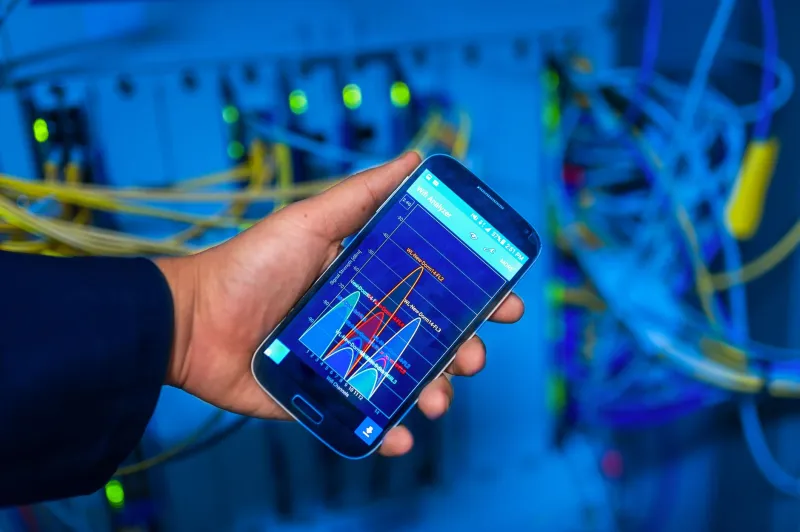
You need a WiFi analyzer. They're free, and they show you every network nearby, which channel it's on, and how strong its signal is. Pick your platform:
- Android: WiFi Analyzer (the classic green one) or Ubiquiti's WiFiman. Both show a channel graph.
- iPhone and iPad: Apple hides the scanner. Open AirPort Utility, enable "Wi-Fi Scanner" in the app's settings, then tap Scan. It's clunky but it works.
- Mac: Hold Option, click the WiFi icon in the menu bar, choose Open Wireless Diagnostics, then go to Window > Scan.
- Windows: Run
netsh wlan show networks mode=bssidin a command prompt, or install a free analyzer from the Microsoft Store, or grab a copy of inSSIDer.
Run the scan in the room where your WiFi is worst — not next to the router, where everything looks great.
Reading the Graph Without a Networking Degree
Two numbers matter.
Channel occupancy: how many networks are sitting on each channel. A channel with nine neighbors is a bad choice; a channel with one is a good one.
Signal strength (dBm): networks at -70 dBm or stronger are the ones actually competing with you. Anything down around -85 is background noise you can mostly ignore. A single strong neighbor can hurt more than a dozen weak ones.
Also glance at channel width. If your 2.4GHz radio is set to 40MHz, it's hogging twice the spectrum and making itself a worse neighbor and a worse listener at the same time.
Step Two: Pick the Loneliest Channel
For 2.4GHz, you only get three honest choices: 1, 6, or 11. Picking channel 3 doesn't dodge congestion — it overlaps both 1 and 6 and manages to be bad at everything.
Count the networks on each of the three, weigh them by signal strength, and take the emptiest. If channel 1 has one distant neighbor and channel 6 has nine loud ones, take 1. If all three are packed, take whichever has the weakest overall signals, set the width to 20MHz, and move on to step three.
For 5GHz, you have far more room. Auto is usually fine, but in a dense building, the DFS channels (roughly 52 to 144) are often empty because cheap routers skip them entirely. If your router supports DFS and your devices behave, it can be a real win. Test it for a few days, though — some DFS implementations drop the connection when they detect radar and re-scan, which is worse than congestion.
To make the change, log into the router, go to Wireless, pick the 2.4GHz band, set the channel manually, and save. A reboot doesn't hurt.
Step Three: Get Your Bandwidth Hogs Off 2.4GHz
In 2026, 2.4GHz is for range and cheap gadgets. It is not for video calls.
- Split your SSIDs. Name one network
YourNameand the otherYourName-5Ginstead of trusting band steering to do the right thing. Manual control beats optimistic automation. - Move phones, laptops, TVs, and consoles to 5GHz. These are the devices that actually consume bandwidth, and they're usually in the same room as the router anyway.
- Leave smart bulbs, plugs, cameras, robot vacuums, and that one stubborn printer on 2.4GHz. A lot of them can't see 5GHz at all, and they use almost nothing.
- If a device can't reach 5GHz from where it lives, that's a coverage problem — not something a channel change will fix.
The Interference That Isn't WiFi
2.4GHz is shared with microwaves, baby monitors, cordless phones, wireless doorbells, garage openers, and — genuinely — poorly shielded USB 3.0 cables and hubs. If your connection only falls apart when someone heats up lunch, you've found your culprit without opening a single settings page.
When a Channel Change Won't Be Enough
If you're in a 300-unit building and your scan shows forty competing networks, no channel choice will rescue you. At that density the answer is more radios and better placement: a mesh system with wired backhaul, or an access point per floor. Channel tuning is a scalpel, not a miracle.
Same if every device in your house is an old 2.4GHz-only gadget. At that point the bottleneck is the hardware in your hand, not the air around it.
Your Afternoon Checklist
- Install a free WiFi analyzer.
- Scan the worst room in the house.
- Screenshot the graph — you'll want the before-and-after.
- Set 2.4GHz manually to 1, 6, or 11, whichever is emptiest, at 20MHz width.
- Leave 5GHz on auto, or try a DFS channel and test it.
- Split your SSIDs into separate 2.4 and 5 names.
- Move every 5GHz-capable device onto the 5GHz name.
- Re-test at 8 p.m. — the congested hour, not noon.
Channel tuning doesn't add speed out of nowhere. What it does is stop you from paying a congestion tax on the speed you already bought.