Your Home Office Deserves a Real Network: A Remote Worker's Guide to WiFi That Actually Holds Up

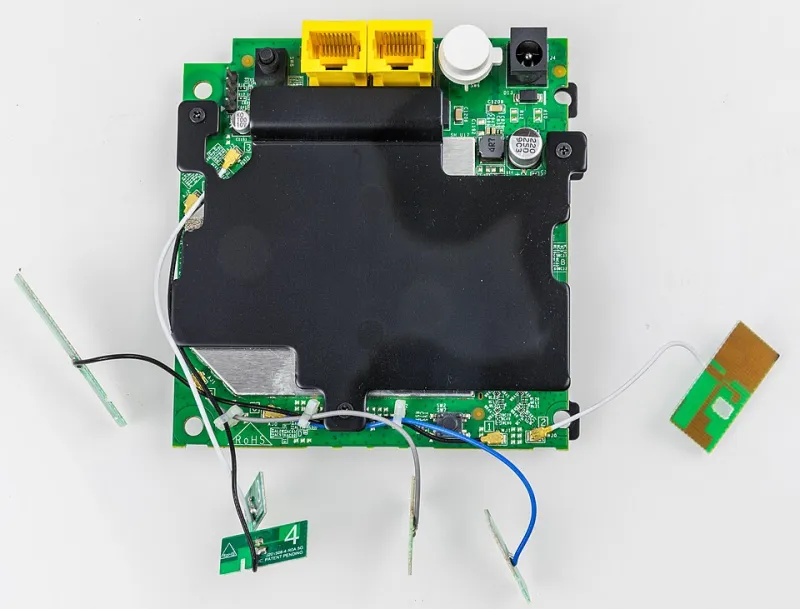
Photo: Wilfredor, CC0, via Wikimedia Commons
The moment your video freezes mid-sentence during a presentation to your biggest client is the moment you realize your home WiFi setup was never actually designed for professional use. It was designed for streaming movies and occasionally checking email. Remote work — real remote work, with back-to-back Zoom calls, large file uploads, and cloud-based collaboration tools running all day — is a completely different beast.
With roughly 22 million Americans working remotely full-time and millions more in hybrid arrangements, the home network has quietly become critical workplace infrastructure. Treating it like casual consumer tech is costing people real professional consequences. Here's how to build something better.
Understand What Remote Work Actually Demands From Your Network
Before throwing money at new hardware, it helps to understand what your workday is actually asking of your connection.
Video conferencing is the biggest culprit behind remote work WiFi pain. A standard Zoom or Teams call consumes roughly 1.5–3 Mbps in each direction. That sounds modest until you factor in that upload speeds — not download — are usually the limiting factor in most home internet plans. Residential connections are deliberately asymmetric: a plan advertised as "200 Mbps" might only offer 10–20 Mbps of upload. If you're screen-sharing a high-resolution display while three other household members are streaming video, you're going to have a bad time.
Cloud storage sync (Dropbox, Google Drive, OneDrive), VPN connections, and browser-based apps like Figma or Salesforce all add steady background consumption to the mix. The problem isn't usually one big thing — it's a dozen medium-sized things colliding at once.
Wired Is Still the Gold Standard
Let's get the obvious recommendation out of the way first: if your home office has any realistic path to a wired ethernet connection, take it. A direct ethernet connection to your router eliminates the single most unpredictable variable in your setup — wireless signal fluctuation.
You don't need to tear open walls to make this happen. Flat ethernet cables can run under doors and along baseboards almost invisibly. Powerline adapters, which send network signals through your home's existing electrical wiring, offer a solid middle ground if running cable isn't practical. MoCA adapters, which use coaxial cable (the same type that connects your cable TV), are another strong option and tend to outperform powerline in most homes.
For your work machine specifically — the laptop or desktop you actually take calls on — a wired connection should be the goal. Everything else can stay on WiFi.
Why Your Router's Placement Matters More Than Its Price Tag
If you're committed to a wireless setup (or you're mixing wired and wireless), router placement is the single highest-impact free adjustment you can make.
Most people put their router wherever the ISP technician installed it — usually near the front door or in a living room corner. That's fine for casual use, but if your home office is at the back of the house or upstairs, you may be operating on the ragged edge of your router's range.
For a home office specifically, the goal is to get a strong, stable signal to one room consistently. A few strategies that work:
Dedicated mesh node in your office. If you're using a mesh system (Eero, Google Nest WiFi, Orbi, etc.), placing a satellite node in or directly outside your home office dramatically improves reliability. Don't rely on a node that's two rooms away — put it close. Ideally, connect that node to your main router via ethernet backhaul to keep the wireless airspace cleaner.
Access point instead of extender. There's an important distinction here. A WiFi extender rebroadcasts your existing signal, which cuts effective bandwidth roughly in half. A proper wireless access point, hardwired back to your router, creates a full-strength extension of your network without that penalty. TP-Link's EAP series and Ubiquiti's UniFi line offer access points at various price points that are genuinely worth it for home office use.
QoS: Making Sure Your Work Traffic Gets Priority
Quality of Service (QoS) settings on your router let you tell your network which devices and types of traffic matter most. When your router has to make choices about what gets bandwidth — your work laptop on a call versus your kid's gaming console — QoS makes sure it makes the right call.
Not every consumer router has robust QoS controls, but most mid-range and higher-end models do. Log into your router's admin interface (usually accessible at 192.168.1.1 or 192.168.0.1 in a browser) and look for QoS settings. You can typically prioritize by device — set your work laptop to highest priority — or by traffic type, giving video conferencing and VoIP traffic the front of the line.
If your current router doesn't offer this, it's a legitimate reason to consider an upgrade. Routers from ASUS, Netgear's Nighthawk line, and TP-Link's Archer series all offer solid QoS controls at reasonable price points.
Building a Backup Plan Before You Need One
Every remote worker eventually has a major meeting coincide with an outage. Your ISP goes down, or your modem decides it's done. Having a backup plan isn't paranoid — it's professional.
The most practical backup for most people is a cellular hotspot. Your smartphone can serve this role in a pinch, but a dedicated mobile hotspot device with its own data plan (from Verizon, AT&T, T-Mobile, or a lower-cost MVNO) is more reliable for sustained use. Keep it charged and know how to connect quickly.
If you work from home full-time and your income depends on connectivity, it's worth calculating whether a second ISP connection — even a basic cable plan as a backup to your fiber — is worth the monthly cost. Some higher-end routers and mesh systems support dual-WAN configurations, automatically failing over to a backup connection when the primary drops.
For video calls specifically, knowing you can quickly switch to your phone's hotspot and rejoin a meeting in under two minutes is the kind of contingency that separates professionals who handle outages gracefully from those who just disappear.
A Quick Audit for Your Current Setup
Not sure where to start? Run through this checklist:
- Test your upload speed specifically at fast.com or speedtest.net. Under 10 Mbps upload is a real problem for regular video calls.
- Check your signal strength in your home office. On Windows, the WiFi icon in the taskbar shows bars; for more detail, use a free tool like NetSpot to see actual signal levels in dBm.
- Look at your router's age. Routers older than four or five years may not support modern WiFi standards, limiting both speed and reliability.
- Count your connected devices. More than 20–25 active devices on a consumer router can start creating performance issues even with a fast internet plan.
- Ask your ISP about a business-tier plan. In many areas, business internet plans offer symmetrical speeds (equal upload and download) and stronger service-level agreements — sometimes for less of a premium than you'd expect.
Your home network doesn't need to be a corporate IT department's dream to serve you well. But it does need to be intentionally built for how you actually use it. A few targeted upgrades and a solid backup plan can mean the difference between a home office that works and one that works against you.